
Key Takeaways
- “Failed to authorize” is a login error, not a broken app. IPTV Smarters Pro reached a server but could not confirm your account.
- Most cases come from the login details. A typo, a wrong server URL format, or an expired subscription causes the bulk of them.
- Network blocks are the next suspect. Router DNS problems or ISP filtering can stop the login request.
- On Firestick, clear the app cache and data first. It takes one minute and removes stale login data.
- If all 7 fixes fail, the problem sits with your provider. Ask them to confirm your account and server status.
If you see IPTV Smarters failed to authorize, the app could not verify your username, password or server URL with your provider. In most cases, you fix it by re-entering your details carefully, correcting the server URL format, and confirming your subscription is active.
IPTV Smarters Pro is only a player. It holds no channels of its own, so every login goes through your provider’s server. That means the fix is either on your screen, on your network, or with your provider.
This guide walks through 7 fixes in the order most likely to work. It also covers the extra steps when IPTV Smarters Pro is not working on Firestick.
Why IPTV Smarters Fails to Authorize Happens
The error appears when the provider’s server rejects or never receives your login. The app itself is usually fine.
If you are new to how logins work, our guide to M3U playlists and Xtream Codes explains the three details Smarters asks for. In short: a username, a password, and a server URL (the provider’s address, often with a port number).
Common causes and quick fixes
| Likely cause | What you notice | Fix to try first |
|---|---|---|
| Typo in username or password | Error appears instantly every time | Fix 1: re-type details by hand |
| Wrong server URL format | Error on every device you try | Fix 2: correct the URL and port |
| Expired or suspended account | Worked yesterday, fails today | Fix 3: check subscription status |
| Too many active connections | Works on one device, fails on another | Fix 3: close other sessions |
| Router or DNS problem | Long wait, then the error | Fix 4: restart router, change DNS |
| ISP blocking the server | Works on mobile data, fails on home Wi-Fi | Fix 5: ask provider for a backup URL |
| Stale app cache or old version | Error after an update or reinstall | Fix 6: clear cache, update app |
| Wrong device date and time | Error plus other secure apps failing | Fix 7: set date and time to automatic |
A quick test narrows it down fast. Try the same login on your phone using mobile data. If it works there, your home network is the problem, not your account.
7 Fixes for Failed to Authorize IPTV Smarters Errors
Work through these in order. Test the login after each one so you know which fix solved it.
Fix 1: Re-enter your login details by hand
Usernames and passwords are case-sensitive. A single capital letter, extra space or autocorrected character will trigger the error.
- Open your provider’s welcome email or account dashboard.
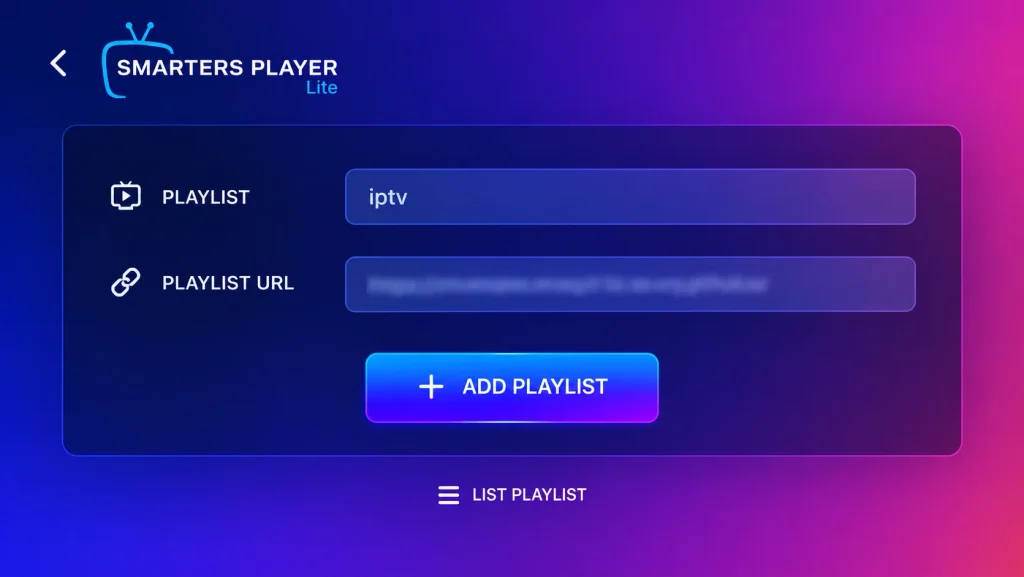
- In IPTV Smarters Pro, delete the saved user and choose Login with Xtream Codes API.
- Type the username, password, and server URL manually. Avoid copy and paste, which often adds a hidden space.
- Check that your remote or phone keyboard did not auto-capitalise the first letter.
- Tap Add User and wait a full 30 seconds before retrying.
Fix 2: Correct the server URL format
![IPTV Smarters Player login screen on a smart TV showing fields for Xtream Codes API username, password, and server URL[cite: 3].](https://homeplexiptv.com/wp-content/uploads/2026/10/IPTV-Smarters-Pro-login-screen-1024x645.webp)
This is the most common hidden cause. The server URL must match exactly what your provider gave you.
- Include the prefix. Most servers start with http://, not https://, unless your provider says otherwise.
- Keep the port number if one was supplied, for example http://example-server.com:8080.
- Remove any trailing slash after the port. :8080/ can fail where:8080 works.
- Do not paste a full M3U link into the Xtream Codes field. That link belongs in the Load Your Playlist or File/URL option instead.
Not sure which login type you have? See our comparison of IPTV M3U URL vs MAC address activation.
Fix 3: Check your subscription and connection limit
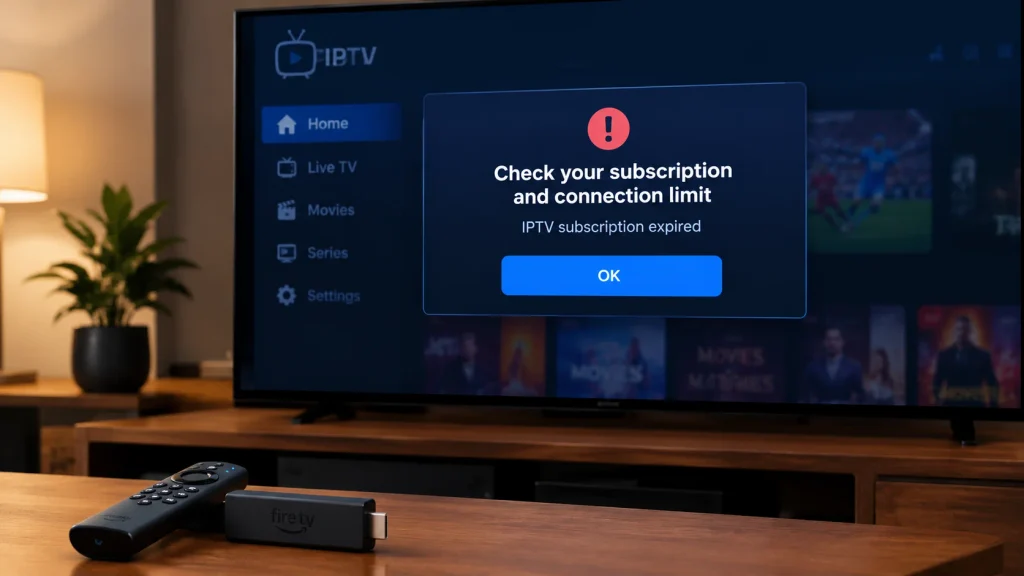
An expired, unpaid, or suspended account returns the same error as a typo. So does going over your plan’s connection limit.
- Log in to your provider’s dashboard and check the expiry date.
- Count how many devices are streaming right now. Close the app on any you are not using.
- If you recently renewed, ask your provider whether your credentials changed.
If you were on a trial, it may simply have ended. Our list of IPTV services with a free trial explains how trial periods usually work.
Fix 4: Restart your network and change DNS
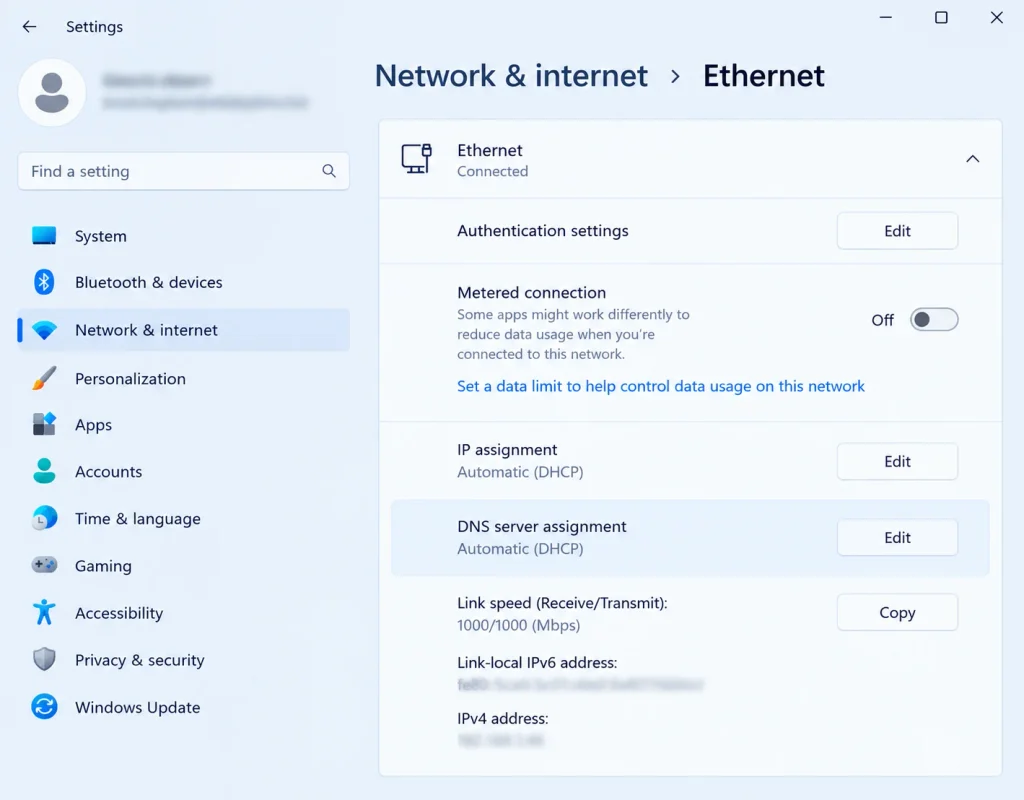
If your router can’t resolve the provider’s domain, the login times out before it reaches the server.
- Unplug your router and modem for 60 seconds, then plug them back in.
- Restart your streaming device.
- If the error returns, switch your device or router DNS to a public resolver such as Google Public DNS (8.8.8.8) or Cloudflare 1.1.1.1.
- Test again on the same Wi-Fi network.
Fix 5: Rule out ISP blocking
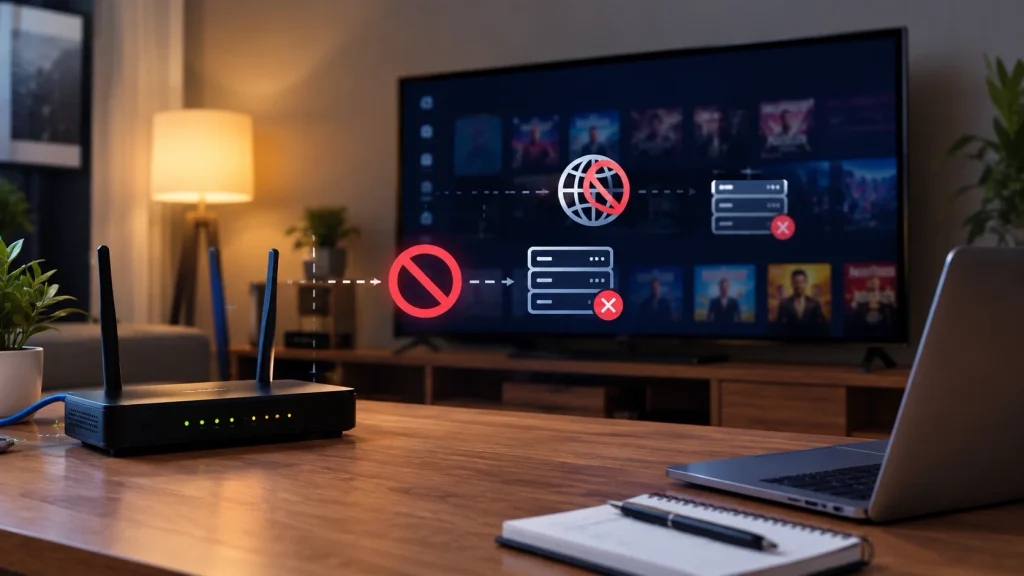
Some internet providers filter traffic to certain IPTV servers. The sign is simple: the login works on mobile data but fails on home broadband.
- Test the login on your phone using mobile data, with Wi-Fi turned off.
- If it works, contact your IPTV provider and ask for a backup server URL.
- Some users connect through a reputable VPN to restore access. Only do this where it is legal, and use a licensed service. Our guide on whether IPTV is legal covers what to check.
Fix 6: Clear the cache and update the app
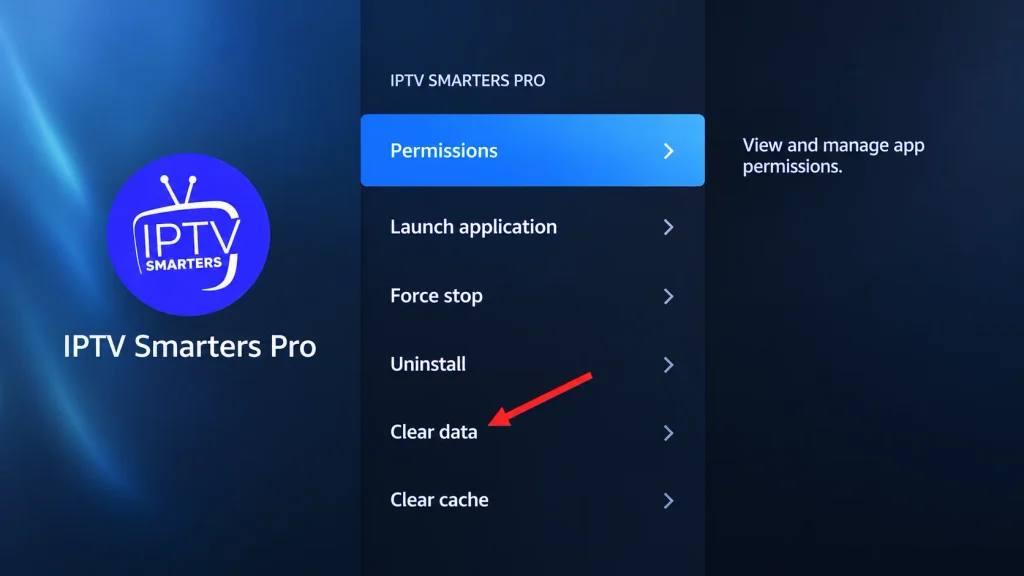
Old login data stored in the app can conflict with new details. An outdated version can also fail after a server-side change.
- Close IPTV Smarters Pro fully.
- Clear its cache, then its data, from your device’s app settings. Clearing data removes saved logins, so have your details ready.
- Update the app from your device’s official app store.
- If that fails, uninstall and reinstall it. Only use the official app, never a modded or “premium unlocked” APK. Those builds are a security risk and often break logins.
If Smarters keeps giving you trouble, compare alternatives in our roundup of the best IPTV player apps.
Fix 7: Set the correct date and time
A device with the wrong date or time can fail secure connections. This one is easy to miss on boxes that lost power.
- Open your device’s Settings, then Date & Time.
- Turn on automatic date and time (network-provided time).
- Confirm the time zone is correct.
- Restart the device and log in again.
IPTV Smarters Pro Not Working on Firestick: Extra Steps
Firestick users hit this error more often because the stick has limited storage and holds old app data. Run these steps if the 7 fixes above did not help.
Clear cache and data the Fire TV way
Amazon’s own guide to clearing app data and cache on Fire TV recommends this for intermittent app issues.
- Go to Settings from the Fire TV home screen.
- Select Applications, then Manage Installed Applications.
- Choose IPTV Smarters Pro.
- Select Force Stop, then Clear Cache, then Clear Data.
- Restart the Firestick from Settings > My Fire TV > Restart.
- Open the app and log in again with fresh details.
Free up storage
A nearly full Firestick can fail to save login data. Uninstall apps you no longer use, then try again.
Check which Firestick model you own
Amazon’s newer Fire TV Stick 4K Select runs Vega OS instead of the Android-based Fire OS. According to AFTVnews, it does not support sideloading or the Downloader app.
If IPTV Smarters Pro is not working on Firestick because it will not install at all, this is the likely reason. Use an Android-based Fire TV model, or pick another supported device. Our guides to IPTV on Roku and IPTV players for Apple TV cover two common alternatives.
Update Fire OS
Go to Settings > My Fire TV > About > Check for Updates. Install any update, restart, then test the login again.
When the Problem Is Your Provider, Not the App
If every fix fails on every device, the issue is almost certainly on the provider’s side. IPTV Smarters not working across all your screens at once is a strong sign of a server problem.
Contact your provider and ask four questions:
- Is my account active, and when does it expire?
- Are my username, password, and server URL still current?
- Is the server down or under maintenance right now?
- Do you have a backup server URL I can try?
On Samsung and LG smart TVs, there is one more check. Some versions of the Smarters TV app only accept servers the provider has registered with the app developer. If your provider has not done this, you will see an authorization error no matter what you type.
A stable provider rarely triggers this error. Look for one that gives clear login details, fast support, and server infrastructure built on a content delivery network. Our list of the best IPTV services compares the options.
If you want a provider that sets up cleanly on IPTV Smarters Pro, Homeplex IPTV sends your Xtream Codes details right after sign-up and offers setup help if a login fails.
Frequently Asked Questions
-
What does “failed to authorize” mean on IPTV Smarters Pro?
It means the provider’s server could not verify your username, password or server URL. The app is working, but your login was rejected or never reached the server.
-
Why is IPTV Smarters Pro not working all of a sudden?
The most common reasons are an expired subscription, a changed server URL, or a provider outage. A router or DNS problem on your network can also cause a sudden failure.
-
How do I fix IPTV Smarters Pro not working on Firestick?
Force stop the app, clear its cache and data, then restart the Firestick. If it still fails, check your login details, update Fire OS, and confirm your model supports the app.
-
Does IPTV Smarters Pro come with channels?
No. IPTV Smarters Pro is a player only, so you need a subscription from a provider to watch anything. Our guide on what IPTV is explains how players and providers work together.
-
Should I use a VPN with IPTV Smarters Pro?
A VPN can help if your internet provider blocks your IPTV server. Use a reputable paid VPN, and only stream content you are licensed to watch in your country.
-
Why does IPTV Smarters work on my phone but not my TV?
Your TV may have a typo in the saved login, a wrong date and time, or an outdated app version. On some Samsung and LG TVs, the provider’s server also needs to be registered with the Smarters app.
-
Is it safe to download IPTV Smarters Pro from outside the app store?
Only download it from your device’s official app store or the developer’s official website. Modded or cracked versions can contain malware and often break the login process.